Stop Worrying About Student AI Use. Start Teaching Through It.

Shape smarter AI use, diagnose learning gaps in real-time, and build curriculum that meets students where they are.

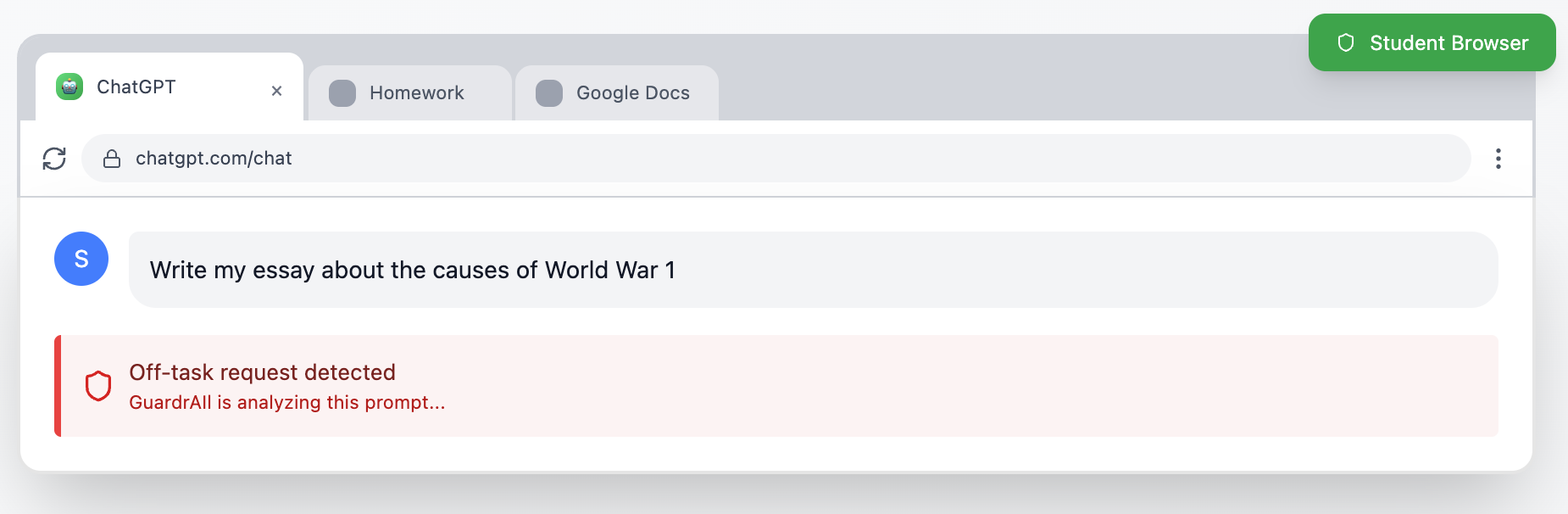
GuardRail Guide Feature - Off-task Detection
Off-task Request Detection
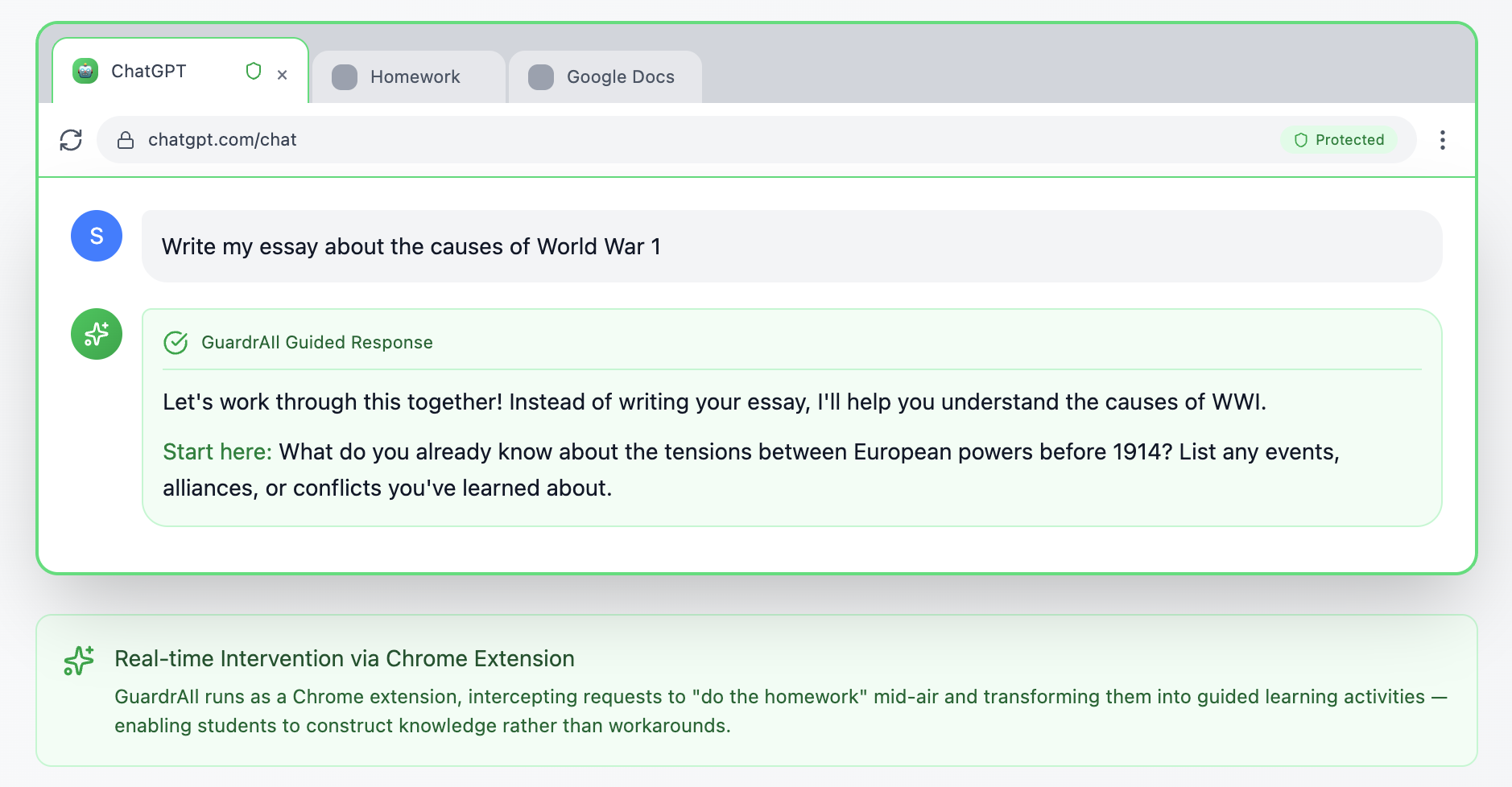
GuardRail Guide Feature - ChatGPT Intervention
Real-time Intervention via Chrome Extension
Guide

Turning Shortcuts into Teaching Moments

AI blocks learning by giving shortcuts to students. GuardRail takes that learning back. When they attempt to offload thinking, GuardRail provides instant course correction that builds real understanding.

  • Real-time redirection based on your AI policy
  • Transforms shortcuts into learning opportunities
  • Builds critical thinking through guided reflection
Analyze

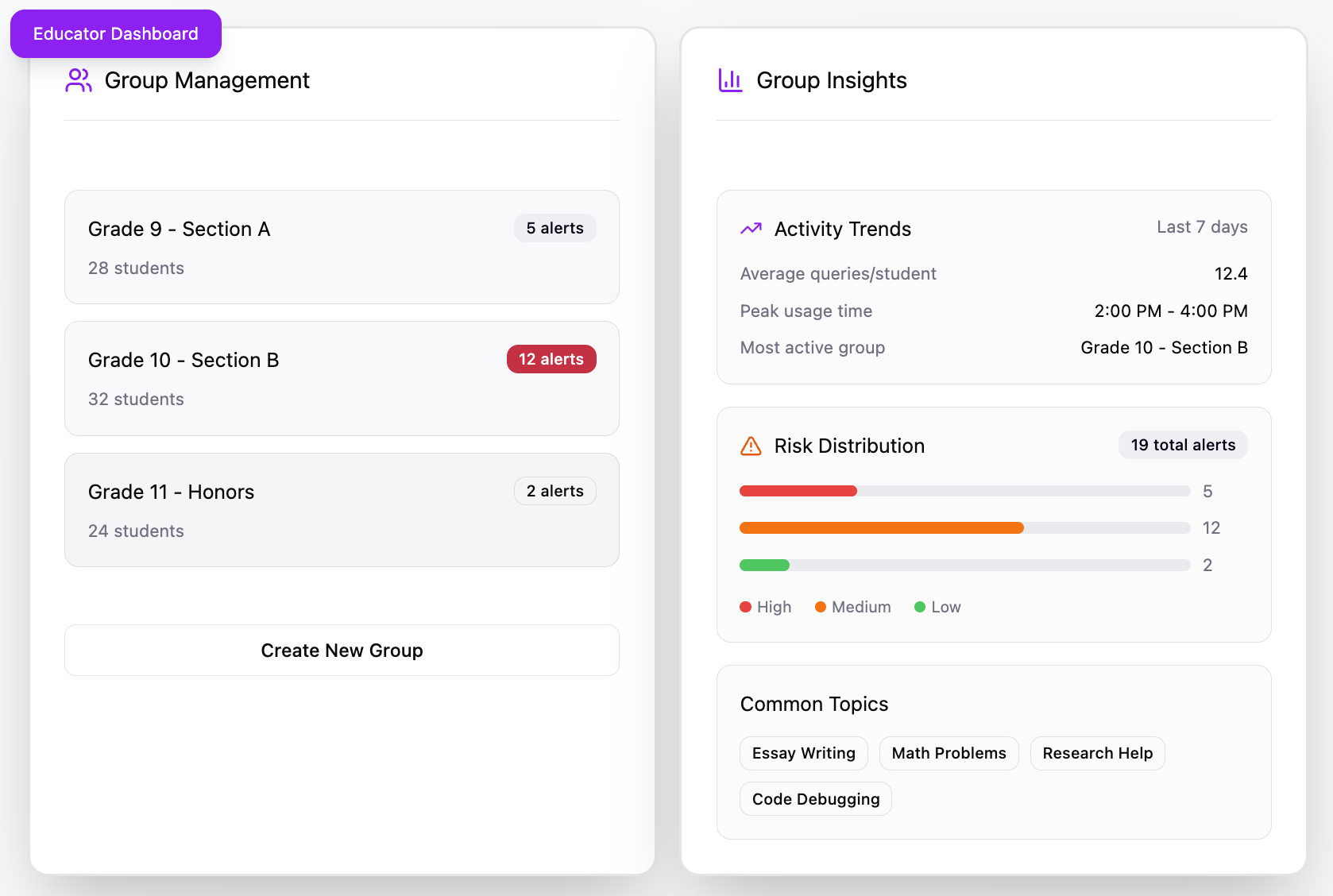
Know where your students are struggling.

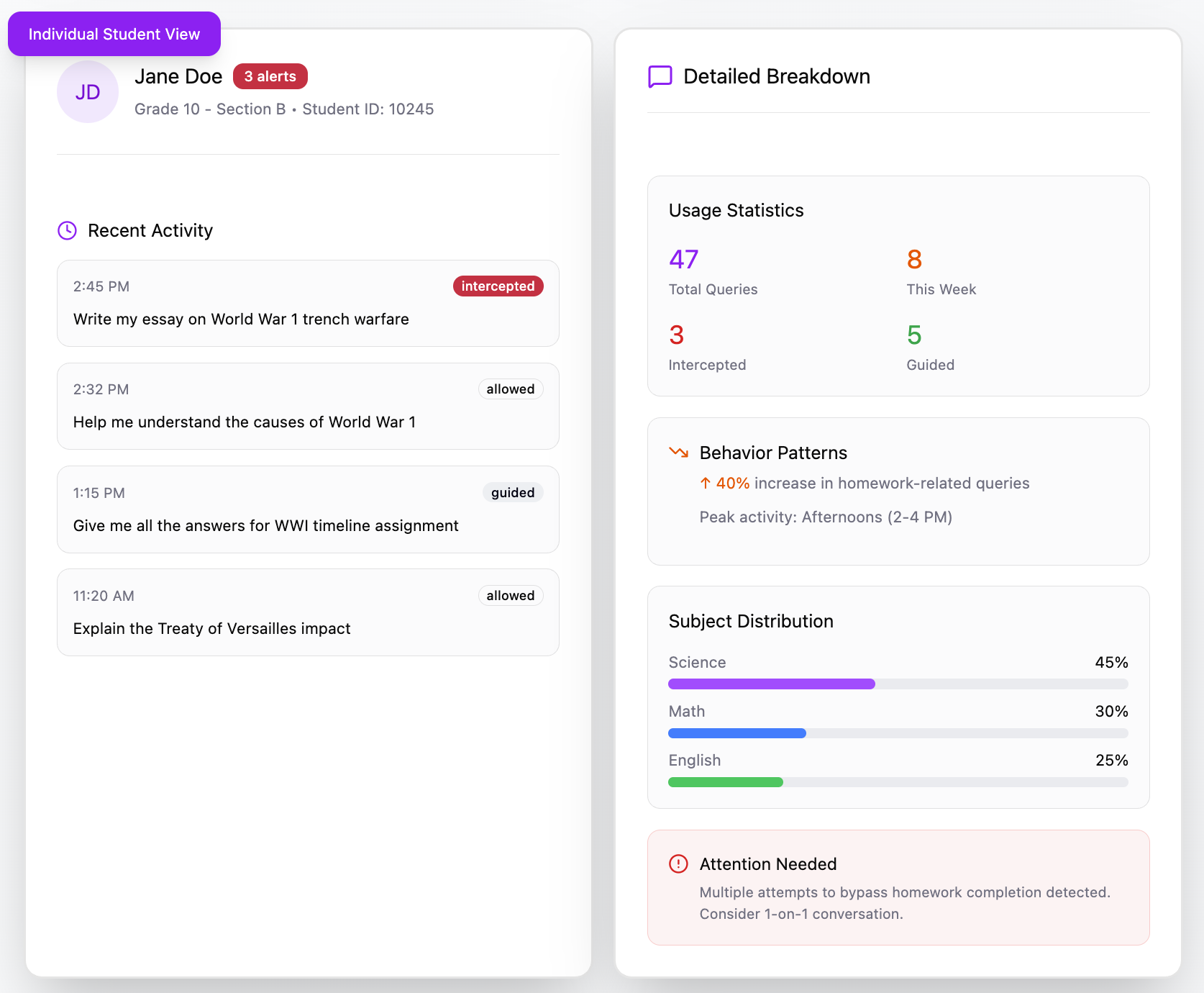
Get detailed insights into individual and classroom-wide learning gaps through AI conversation analysis. Identify patterns in how students approach problems, understand recurring obstacles, and trace exactly where learning breaks down.

  • Identify specific topics and concept gaps where students struggle
  • Track student and classroom-wide AI usage patterns
  • Designed with teachers in mind - clear insights without the learning curve
GuardRail Analyze Feature - Group Analysis
GuardRail Analyze Feature - Student Analysis
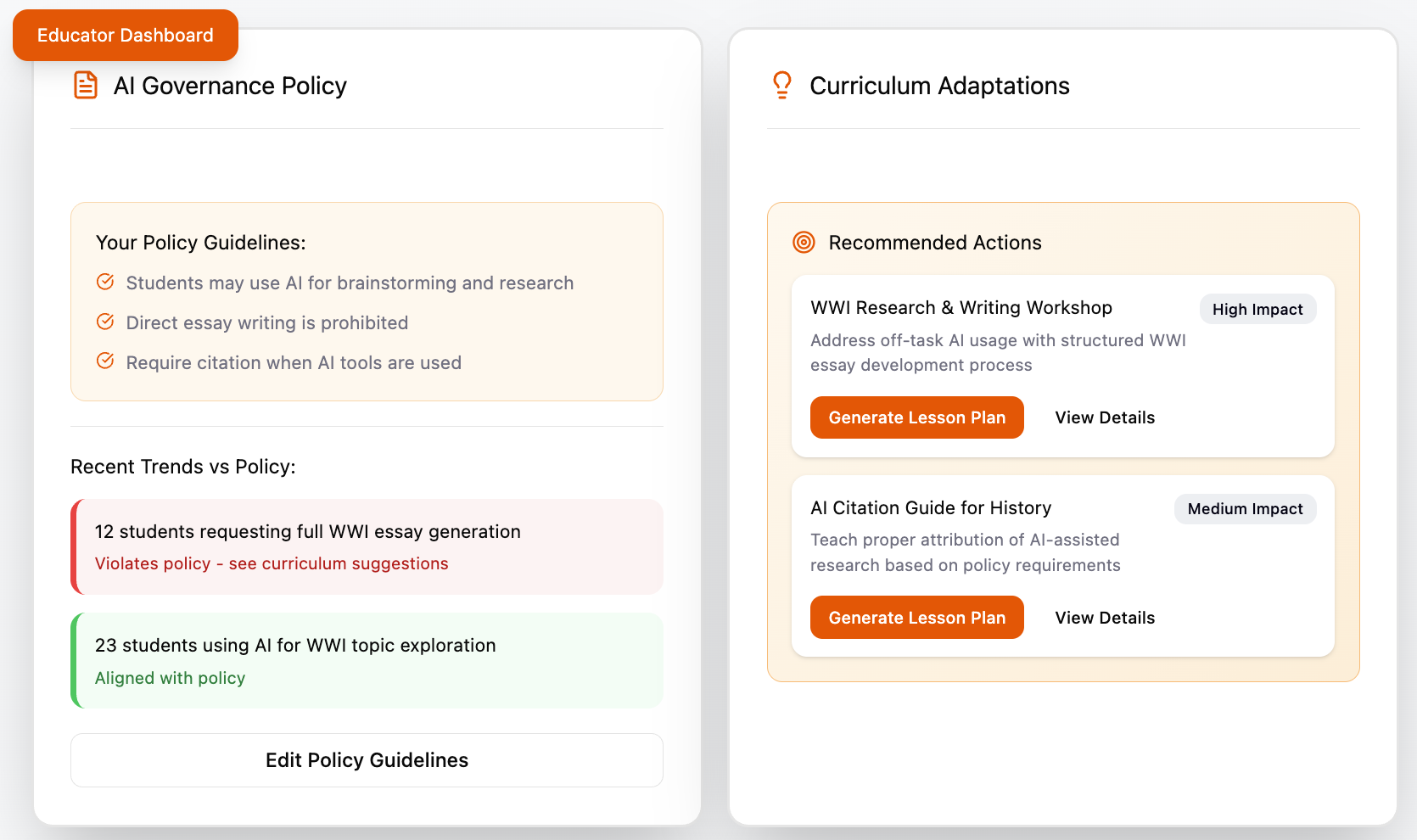
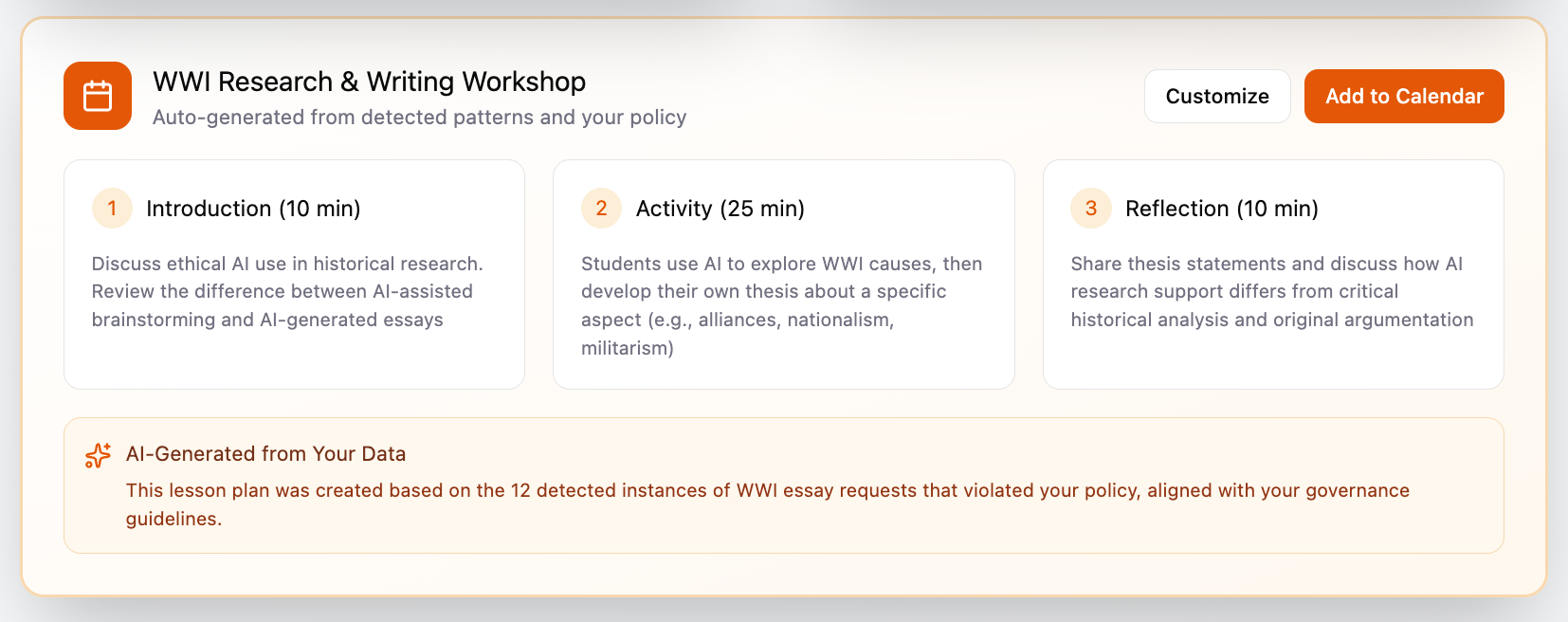
GuardRail Plan Feature - Fragment 1
GuardRail Plan Feature - Fragment 2
Plan

Faster Planning, Smarter Curriculum

Lesson plans powered by real student needs, not assumptions. Want to address the exact concepts your students are struggling with? Transform AI interaction insights into targeted curriculum in minutes.

  • AI-assisted planning that enhances your expertise, not replaces it
  • Personalized curriculum planning at classroom scale
  • Streamlined workflows that restore your teaching time

How it Works

1

Guide

Ensures every AI interaction follows your teaching standards by redirecting students from shortcuts to critical thinking.

2

Analyze

Highlight individual and classroom-wide learning gaps by analyzing student AI interactions to identify exactly where understanding breaks down.

3

Plan

Transform AI-powered insights into actionable lesson plans that adapt your curriculum to real student needs.

Get Started

Installation

  1. Download the extension — Click the link from your professor to download the GuardRail extension zip. Save it to your Downloads folder.
  2. Unzip the file — Extract the zip. You should see a folder with the GuardRail extension files.
  3. Load extension in Chrome — Open Chrome → chrome://extensions. Enable "Developer mode" (top-right). Click "Load unpacked" and select the dist folder inside the GuardRail folder.
  4. Pin the extension to the toolbar — Click the puzzle-piece icon in the top-right of Chrome, find GuardRail, and click the pin icon so it appears in your toolbar for easy access.
  5. Create account — Click the GuardRail icon in your toolbar and create an account.
  6. Enter classroom code — Enter the code provided by your professor to join the pilot.
  7. Verify setup — Visit ChatGPT or Google Gemini. You should see a small GuardRail indicator in the top-right corner.

You're ready to go. GuardRail is now monitoring your AI tool usage to help you learn more effectively.

How it works

GuardRail evaluates your prompts based on learning intent:

  • Good prompt: "Can you explain how async/await works in JavaScript? I'm getting errors in my fetch request."
  • Needs improvement: "Write my JavaScript homework"

When GuardRail detects a shortcut-style prompt, it suggests ways to make it more effective for learning.

Need help?

Contact your professor or guardrail.feedback@proton.me

FAQ

About GuardRail

GuardRail is a Chrome extension that helps you use AI tools like ChatGPT and Google Gemini more effectively. It encourages you to ask better questions that deepen your understanding instead of using AI as a shortcut.
LLMs give students information in a revolutionary way, but it can be hard to retain if not curated. GuardRail helps you learn at your own pace while giving teachers insight to adapt lessons to student needs.
Good prompts show your own thinking and ask for help with specific concepts. Examples: "Can you explain the difference between let and var in JavaScript?" or "I'm trying to center a div using flexbox but it's not working. Here's my code: [code]. What am I missing?"

Privacy & grades

No. This is a pilot for testing only. GuardRail has zero impact on your course grade. Your professor uses it to understand how students interact with AI, not to evaluate you.
GuardRail collects your prompts and AI responses to: provide real-time feedback, help your professor understand classroom AI usage, and improve the product. Data is anonymized for product improvement and never shared with third parties.
Yes. Your professor and TAs can see your prompts and AI responses when GuardRail is active, for educational purposes only—to understand how students learn with AI and provide better support. The purpose is educational insight, not surveillance or grading.

Using GuardRail

Yes. Disable it anytime from the Chrome extensions menu (puzzle icon → find GuardRail → toggle off). You only need it on for web development coursework; turn it off for other classes or personal projects. For the pilot we encourage keeping it on during web dev work.
Participation is voluntary. Uninstall the extension (right-click icon → "Remove from Chrome") and email your professor or guardrail.feedback@proton.me to confirm. No penalty and it won't affect your grade or standing.
Currently: ChatGPT and Google Gemini. We're adding more based on student feedback.
GuardRail analyzes it in real time. If it looks like a shortcut, GuardRail suggests improvements. If it's already a good learning prompt, you proceed without interruption.
That's valuable feedback. If you think a prompt was misjudged, let us know—your input helps improve the system.
Use the Student Dashboard for overall feedback, or use the Reprompting UI to flag feedback directly when you disagree with an assessment. Flagging helps us improve GuardRail for everyone.

Troubleshooting

1) Refresh the page (ChatGPT or Gemini). 2) Check that you're signed into GuardRail (click the extension icon). 3) Make sure the extension is enabled in Chrome. 4) If still not working, email guardrail.feedback@proton.me
There may be a 1–2 second delay while GuardRail analyzes your prompt. If it's significantly slower, please report it—performance issues are important pilot feedback.

Feedback & support

Email guardrail.feedback@proton.me, talk to your professor, or use the feedback form in the extension. Tell us what works, what doesn't, and what you'd like improved. Your voice matters—if something feels off, speak up.

Ready to transform your classroom?

Join our pre-launch waitlist to be among the first to utilize GuardRail. Sign up now for exclusive early access and pilot program information.

Limited spots available
No commitment required